How to Reset Your Password on the New GoG ePay Services Portal 2026
Forgetting your GoG ePay Services password can prevent you from accessing your account, payslips, and other employee services. The password reset process lets you recover access by verifying details connected to your account.
Here you’ll find the steps to reset your GoG ePay Services password, verify your account, create a new password, and fix common problems that may occur during the process.
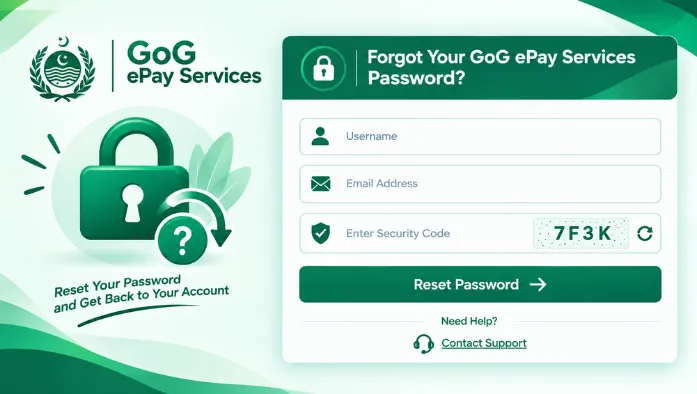
Forgot Your GoG ePay Services Password?
If you can’t remember your GoG ePay Services password, you don’t need to create another account. Use the password recovery option on the login page and follow the verification steps. You may need your employee number, security question details, and registered phone number to complete the reset process.
How to Reset Your GoG ePay Services Password
The password reset process involves opening the login page, confirming your employee information, verifying your phone number, and creating a new password.
Follow each step carefully so the information you enter matches the details linked to your account.
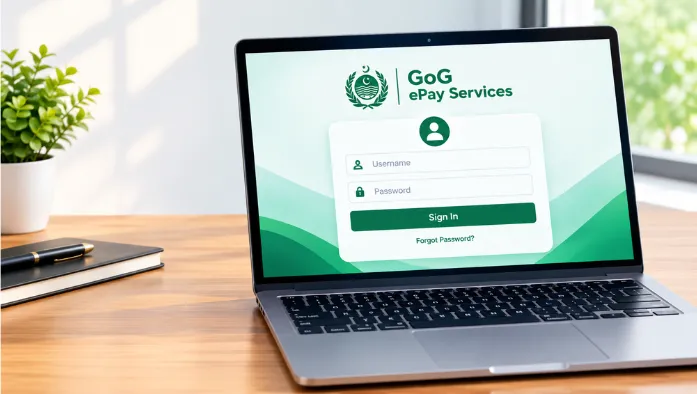
Step 1: Open the GoG ePay Services Login Page
Start by opening the GoG ePay Services login page. Look for the section where employees enter their account details.
Make sure you are using the correct ePay Services portal before entering any personal or account information.
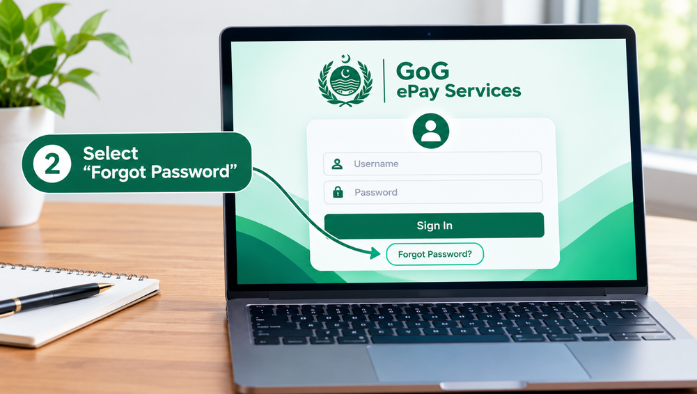
Step 2: Select “Forgot Password”
On the login page, look for the “Forgot Password” option. Select it to open the password recovery page. This option starts the process of recovering access to your existing account.
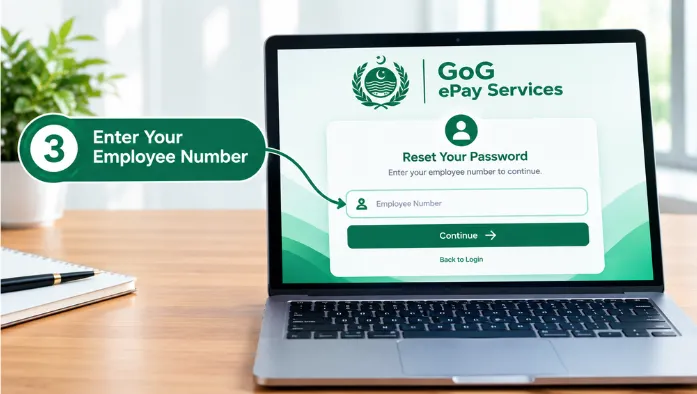
Step 3: Enter Your Employee Number
Enter your employee number in the required field. Check the number carefully before continuing. An incorrect employee number may prevent the system from finding your account.
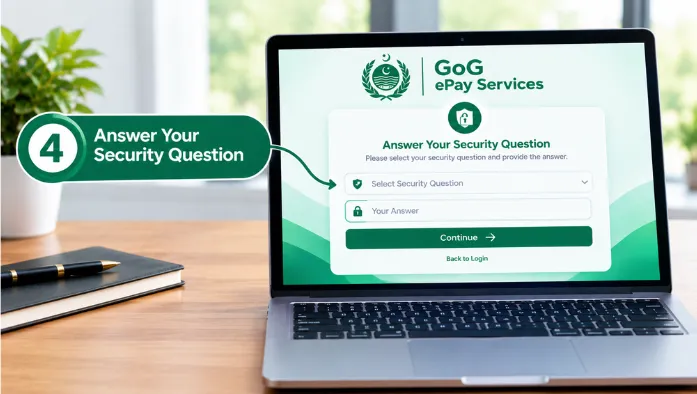
Step 4: Answer Your Security Question
If the system asks a security question, provide the answer associated with your account. Enter the answer carefully because an incorrect response may stop you from moving to the next verification step.
Step 5: Enter Your Registered Phone Number
Enter the phone number connected to your GoG ePay Services account. Make sure the number matches the one registered with your account. A different phone number may not receive the verification code.
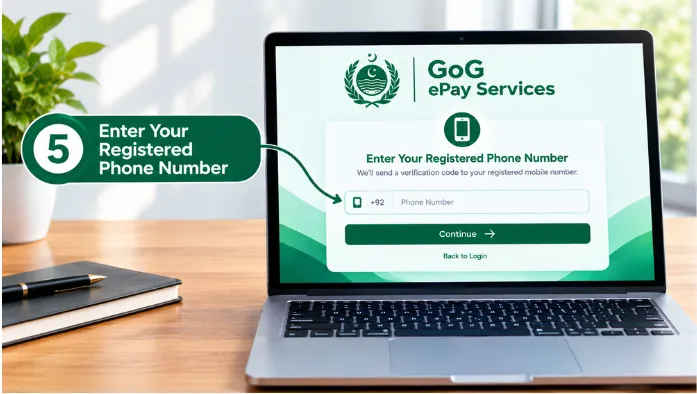
Step 6: Verify the OTP Code
After submitting your phone number, enter the OTP sent to your registered number. Check the code carefully and enter it within the available time. If the code expires, you may need to request another OTP.
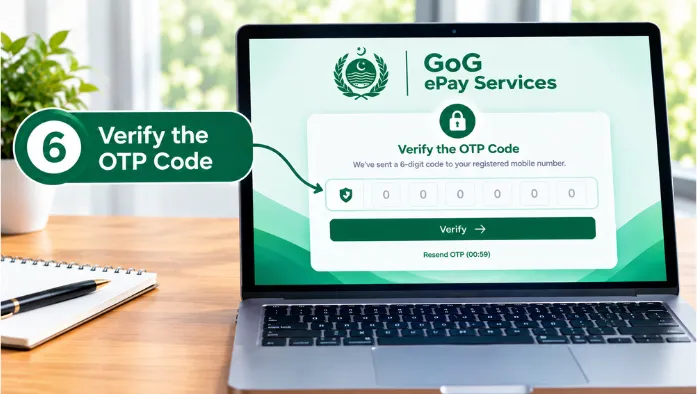
Step 7: Create a New Password
Once your account has been verified, create a new password. Choose a password that is difficult for others to guess but easy for you to remember. Avoid using simple information such as your name or an easily guessed number.
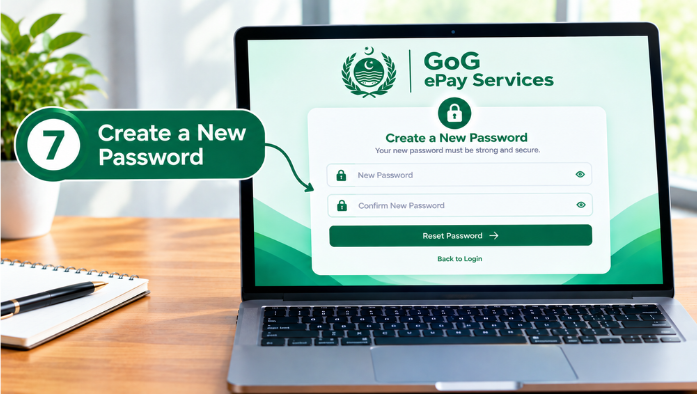
Step 8: Return to the Login Page
After successfully changing your password, return to the GoG ePay Services login page. Use the normal sign-in option to access your account.
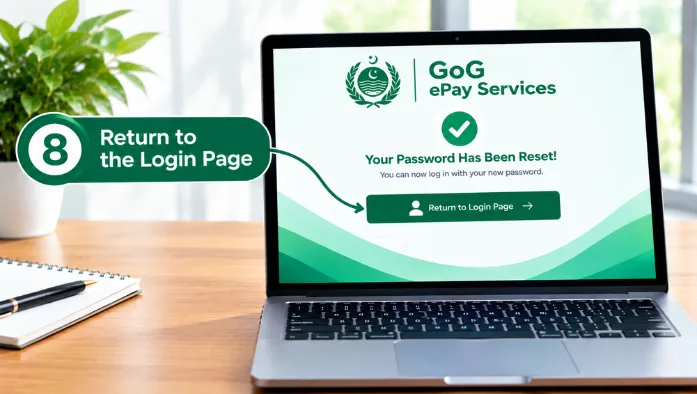
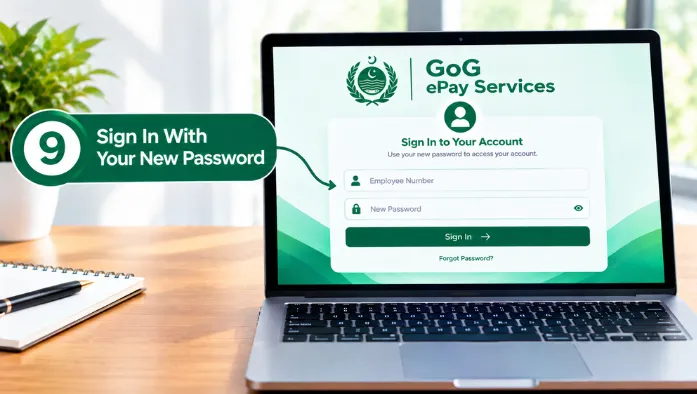
Step 9: Sign In With Your New Password
Enter your employee login details and the new password you created. If the new password is accepted, you should be able to access your account again to Generate a Mandate Number.
What If You Do Not Receive the OTP?
If the OTP does not arrive, first check that you entered the correct registered phone number. Give the message a little time before requesting another code.
You should also check whether your phone has a signal and can receive SMS messages. If repeated attempts do not work, you may need to contact the relevant support service.
GoG ePay Services Password Reset Not Working?
Sometimes the reset process may stop because one of the account details does not match. Check the information you entered before trying again.
Employee Number Is Not Accepted
Check your employee number and make sure you entered it correctly. Avoid adding extra spaces or using an incorrect employee identification number.
If the number is still rejected, your account details may need to be checked by the appropriate support team.
Security Question Answer Is Incorrect
Review the answer you originally provided when setting up your account.
If you cannot remember the correct answer, avoid repeatedly entering random responses. Contact support if the system does not provide another recovery option.
Phone Number Does Not Match
The phone number used during password recovery must match the number registered with your account.
If you have changed your phone number, the reset process may not work until your account information is updated.
Account Is Locked
Repeated unsuccessful login or verification attempts may prevent access to the account.
If your account is locked, follow any recovery instructions shown on the portal or contact the relevant support team for assistance.
Password Reset Page Is Not Loading
If the password reset page does not open, check your internet connection and try refreshing the page. You can also try opening the portal again in another browser or clearing temporary browser data if the problem continues.
What to Do After Resetting Your Password
After resetting your password, sign in to Check and Download your ePayslip to confirm you can access your account normally. Keep your new password private and avoid saving it on a shared or public computer. If you use a password manager, you can store it there securely.
How to Keep Your GoG ePayslip Account Secure
Use a strong password and avoid sharing your login details with other people. Do not send your password or OTP to anyone asking for account access. When using a shared device, log out after finishing your session. Also, avoid entering your account details on websites or pages that you do not trust.
When Should You Contact GoG ePay Services Support?
If the normal password recovery process does not work, you may need to contact CAGD support to verify your account or update account information.
You Cannot Verify Your Account
Contact support if your employee number, security answer, or other verification details are repeatedly rejected even though you believe they are correct.
Your Registered Phone Number Has Changed
If your registered phone number is no longer available, you may not be able to receive the OTP. Contact the appropriate support channel to ask about updating your account details.
You Still Cannot Access Your Account
If you have reset your password but still cannot sign in, explain the problem to support and provide the relevant account information they request.
FAQs
Conclusion
Resetting your GoG ePay Services password starts with the “Forgot Password” option on the login page. Keep your employee number and registered phone available so you can complete the verification process.
If the OTP, security question, phone number, or account verification causes a problem, check your details carefully before trying again. For account issues that cannot be resolved through the reset process, contact the appropriate GoG ePay Services support channel.