How to Check & Download Your ePayslip on the GoG ePay Services Portal 2026
The GoG ePay Services Portal lets government employees access their payslip details online without depending on a physical copy. You can check your salary information, view previous payslips, and save or print a copy when needed.
If you want to check your GoG ePayslip in 2026, the process is straightforward. This guide covers how to access your payslip, download it, check older records, fix common problems, and keep your payroll information secure.
What You Need to Check Your GoG ePayslip
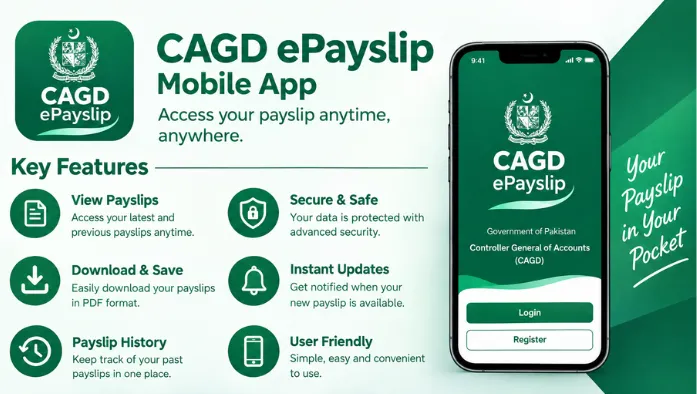
Before checking your payslip, make sure you have your GoG ePay Services login details ready. You need a stable internet connection and a device like a phone or computer, or simply use the CAGD ePayslip Mobile App.
If you are checking a specific payslip, it helps to know the month and year you want to view. It makes it easier to find the correct payroll record after signing in.
How to Check Your GoG Payslip Online
Once you have your login details, you can access your payslip from your ePay Services account. Follow these steps to find and generate the required payslip.
Step 1: Log In to GoG ePay Services
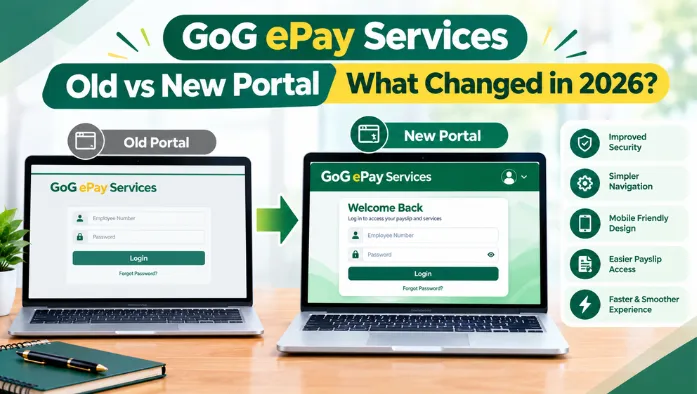
Open the GoG ePay Services Portal and enter your account login details. Make sure you use the correct username and password associated with your employee account.
If your login information is rejected, you may need to Reset Your Password.
Step 2: Open Your Dashboard
After logging in, you should reach your account dashboard. This is where you can access the services and information available through your ePay account.
Look through the available options to find the section related to your payroll or payslip.
Step 3: Select “Payslip”
Find and select the “Payslip” option from your dashboard. This should take you to the area where your available payslips can be viewed.
The exact layout may vary depending on the current version of the portal.
Step 4: Choose the Month and Year
Select the month and year for the payslip you want to check. If you are looking for your latest salary record, choose the most recent available pay period.
Double-check the selected period before generating the payslip so you don’t open the wrong record.
Step 5: Generate Your Payslip
After choosing the required period, select the option to generate or view the payslip. The portal should display the available payroll information for that period.
Give the page a moment to load if the payslip takes some time to appear.
Step 6: Review Your Salary Details
Once your payslip appears, check the information carefully. Review your salary, allowances, deductions, and final net pay to make sure the details match your expectations.
If you notice something that doesn’t look correct, keep a copy of the payslip and follow the process for reporting a payroll issue.
How to Download Your GoG ePayslip
After generating your payslip, you may want to keep a digital copy for your records. Depending on the options available on the portal, you can save the payslip as a PDF or print a physical copy.
Download the Payslip as a PDF
If a download option is available, select it and choose PDF as the file format when prompted. Save the document in a folder where you can easily find it later.
Use a clear file name that includes the pay period, such as the month and year, to keep your records organized.
Print Your Payslip
You can print your payslip if you need a physical copy. Select the print option from the payslip page or your browser’s print menu.
Before printing, check the preview to make sure the full payslip is visible and no important information is cut off.
Save Your Payslip for Future Use
Keeping digital copies of your payslips can make it easier to find salary records when you need them. Store them in a secure folder on your device or another trusted storage location.
Avoid saving sensitive payroll documents on public or shared computers.
What Information Is Shown on a GoG Payslip?
A GoG payslip contains payroll information related to your employment and salary for a particular pay period. The exact fields can vary, but several common details are normally used to show how your final pay was calculated.
Employee and Payroll Details
Your payslip may include identifying and payroll-related information such as your employee details and the relevant pay period.
Check these details carefully, especially if you are using the payslip for an application or official record verified by CAGD.
Basic Salary and Allowances
The payslip shows your basic salary along with applicable allowances included in your pay. The amounts listed under CAGD Loan and Salary help show how your gross earnings were calculated.
Review each listed amount to make sure the figures are consistent with your expected payroll information.
Deductions and Net Pay
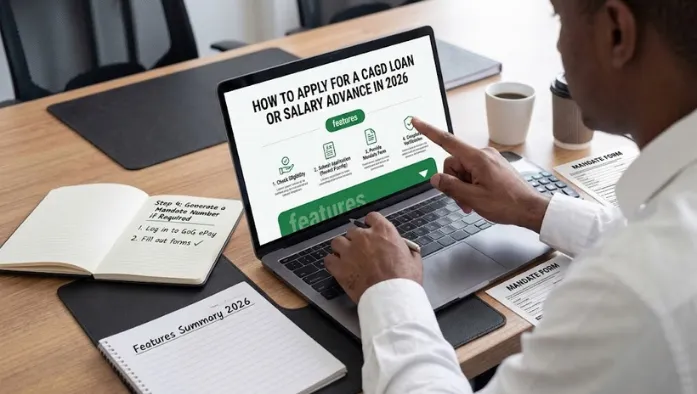
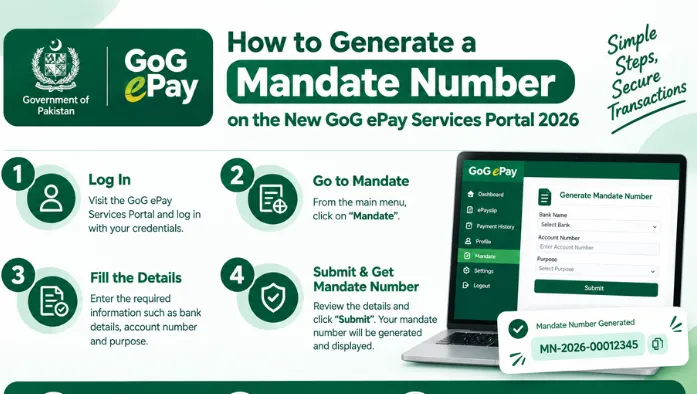
Deductions are listed separately from your earnings. After the applicable deductions are taken from your gross pay, the remaining amount is shown as your net pay. For loan deductions, you will need to Generate a Mandate Number.
Checking these figures can help you understand why the final amount credited to you may differ from your basic salary.
How to Check Previous GoG Payslips
If you need a payslip from an earlier month, you don’t necessarily have to rely on your latest record. The payslip section may allow you to select an older pay period and access previously available records.
Select an Older Pay Period
Open the payslip section and look for the month and year selection options. Choose the older period you need and generate the corresponding payslip.
If the required month isn’t available, it may not have been uploaded or accessible through your account.
View and Download Previous Payslips
Once an older payslip is displayed, you can review the information and use the available download or print option.
This can be useful when you need a previous salary record for documentation or personal recordkeeping.
Keep Your Payslip Records Organized
If you regularly download payslips, keep them arranged by year and month. A simple folder structure can make it much easier to find an old record later.
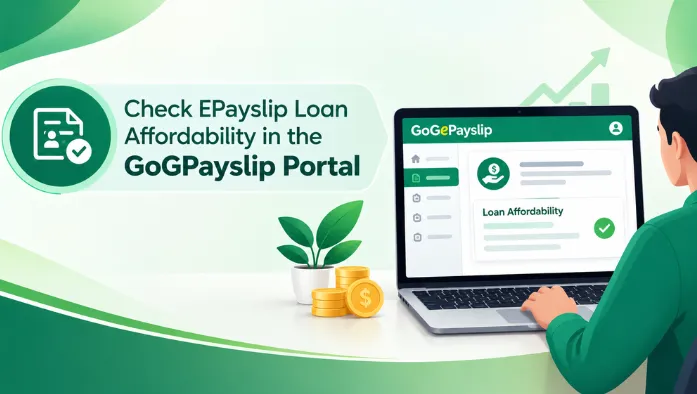
You can also use consistent file names so you don’t have to open several files to find the payslip you need. Having them organized also makes it easier to check your EPayslip Loan Affordability when needed.
GoG ePayslip Not Showing? Common Problems & Fixes
Sometimes a payslip may not appear even after you successfully log in. The issue can be related to the selected pay period, portal loading problems, account access, or the availability of the payroll record.
Payslip Is Not Available
If your payslip is missing, first check that you selected the correct month and year. A newly processed payslip may also take some time to become available on the portal.
If the record remains unavailable, contact the relevant payroll or employer support channel for assistance.
Wrong Month or Year Selected
A simple date selection error can make it seem like your payslip is missing. Return to the payslip section and carefully check both the month and year.
Then generate the payslip again using the correct pay period.
Payslip Page Is Not Loading
If the payslip page keeps loading or doesn’t open, refresh the page and try again. You can also check your internet connection or reopen the portal in another browser.
Avoid repeatedly submitting the same request if the page is slow to respond.
Download or Print Option Is Not Working
If you can view the payslip but cannot download or print it, check your browser’s download and print settings. You can also try another browser or device.
If the issue continues, save the visible payslip information if possible and try again later.
Login or Password Problems
Incorrect login details can prevent you from reaching your payslip. Re-enter your username and password carefully and use the available account recovery option if you have forgotten your credentials.
Never share your password with another person while trying to resolve a login problem.
How to Keep Your GoG ePayslip Secure
Your payslip contains personal and financial information, so it should be handled carefully. Simple security habits can reduce the risk of someone else accessing your payroll records.
Use the Official Portal
Always access your account through the correct GoG ePay Services portal. Be careful with links received from unknown sources that ask you to enter your login details.
Check the website address before entering your username or password.
Protect Your Login Details
Keep your username, password, and other account information private. Don’t send your login details to friends, coworkers, or unknown people offering to fix an account problem.
Use a strong password and avoid reusing it across unrelated accounts.
Log Out on Shared Devices
If you access your payslip from a shared or public computer, log out when you’re finished. Don’t leave your account open for the next person who uses the device.
It’s also safer to avoid downloading sensitive payroll files to shared computers.
FAQs
Conclusion
Checking your GoG ePayslip online can help you access salary records without waiting for a physical copy. From the ePay Services dashboard, you can select a pay period, review your salary details, and save or print the available payslip.
Keep your downloaded payslips organized and protect your account details when using the portal. If you find an error or cannot access a required record, report the issue through the appropriate payroll or employer support channel.